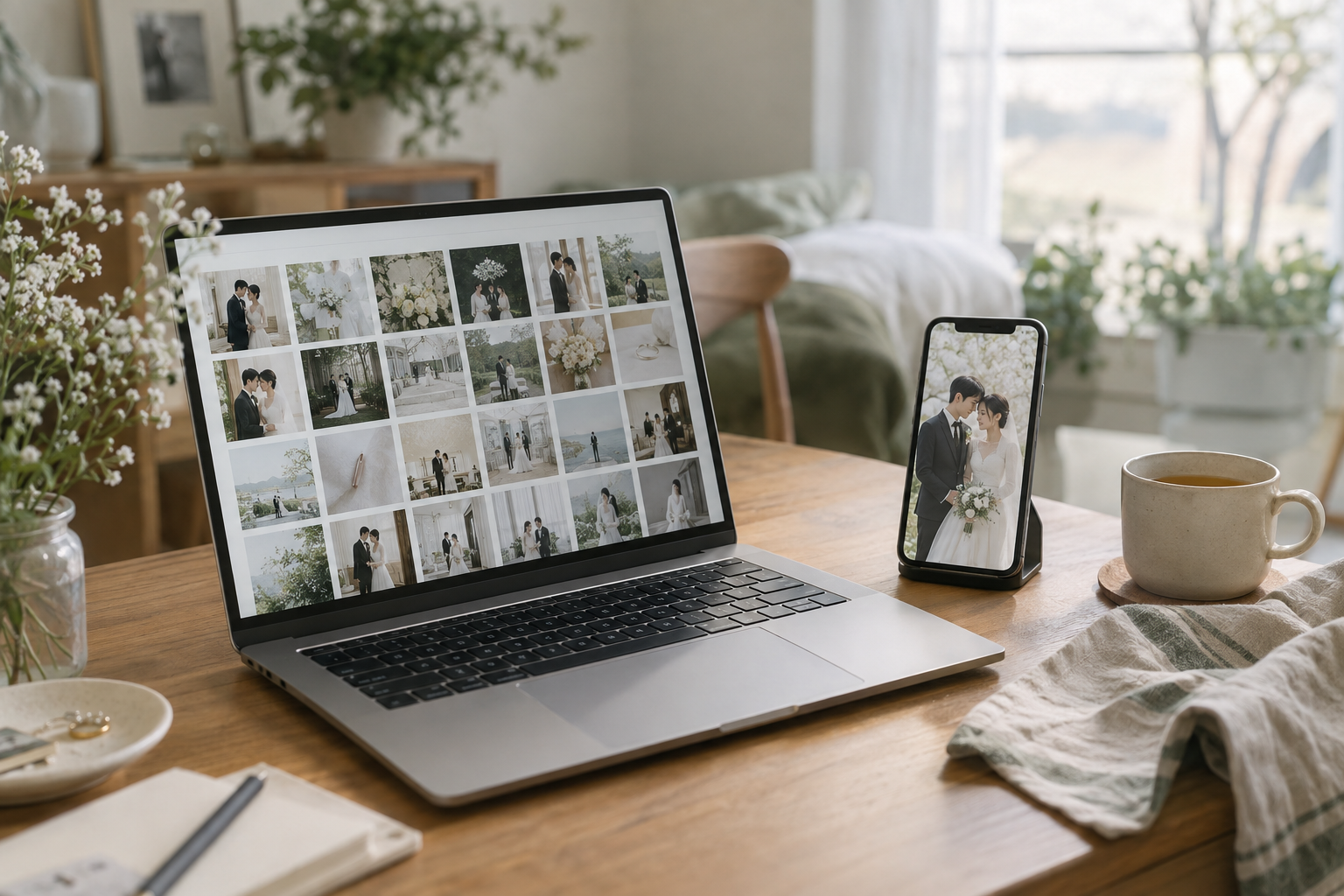
Your phone is excellent at turning “I will just check a few” into half an hour of wedding photographs. It is less convenient for comparing tiny details across several near-identical frames. A useful workflow lets each screen do an appropriate job instead of demanding that one device do everything.
On the phone: identify the moments
Use an initial pass to note expressions, people and scenes you want to revisit. Keep uncertain images available rather than rejecting them because a detail is hard to judge at a small size. Make short, specific notes: “check focus on the left person” is more useful later than “maybe?” repeated forty times.
Before doing a large amount of work, select one test image and confirm that the choice is saved or visible where you expect. A gallery link, a shared session and a downloaded folder are not interchangeable systems. If two devices use separate copies, you may need a filename list rather than automatic synchronization.
On the larger screen: check the finalists
Compare similar frames side by side and inspect important details at a useful zoom. Lightroom Classic’s Compare and Survey views are official examples of this approach; they are not the only possible viewers. Check the intended crop and the album layout requirements with the photographer or printer.
Do not expect two uncalibrated screens to settle a subtle color dispute. Different display settings can change how the same file appears. For a requested retouch, name the part of the photograph you want changed and discuss the intended output with the professional doing the work. “Make it look like my phone” is a moving target with a battery percentage.
Hand over decisions, not screenshots of decisions
Preserve original filenames. A screenshot of a thumbnail may help explain a concern, but it should not replace an unambiguous selection list. After exporting, open the file and check that the count, names and notes are present. Then follow the photographer’s submission instructions.
If you use PicSelec, the host prepares the wedding session after signing in; desktop Chrome or Edge is recommended for folder access. Invited participants can select from a mobile browser. Save the final output before the seven-day session retention period ends. This is a collaboration workflow, not permanent cloud backup.
Try one complete loop first
- Open one photo on the phone and record a selection.
- Confirm the expected state on the other device or in the export.
- Check a note and the original filename.
- Only then work through the rest of the gallery.
The best time to discover a handoff problem is before the thousandth photograph. The second-best time is now, before somebody renames every file “final-final.”
Sources:
https://helpx.adobe.com/au/lightroom-classic/desktop/viewing-photos/browse-compare-photos.html
https://picselec.com/how-to-use
Comments 0
No comments yet.
Log in to comment.